How To Program the Baofeng UV-5G Plus GMRS Radio
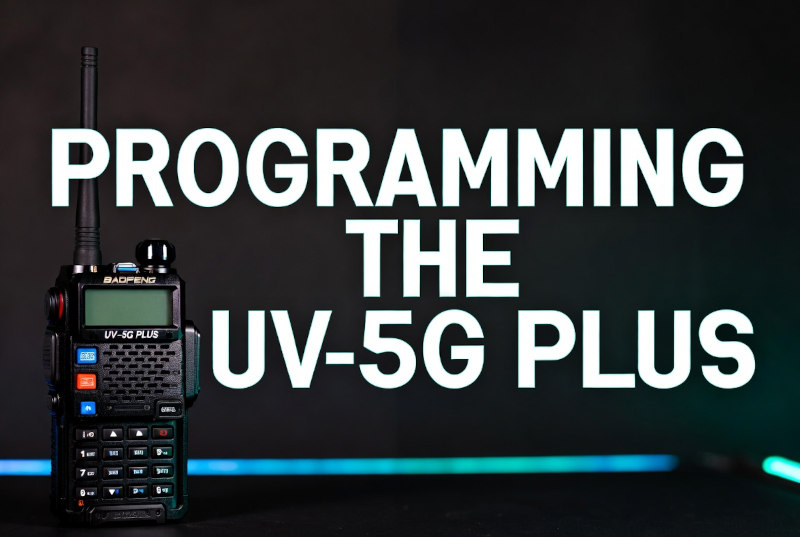
Welcome everyone, my name is James Burnett, and today we’re going to learn how to program the Bofang UV 5G Plus handheld GMRS radio. Whether you’re brand new to these radios or just need a refresher, this guide will walk you through everything you need to know — from basic button functions all the way to weather mode and factory resetting.

Getting to Know the Buttons
Before we dive into programming, let’s get familiar with the controls:
- A/B Button (blue button, center) — Switches between the top and bottom display. The radio can show two frequencies, two channels, or any mix — and monitor both simultaneously. Watch for the “main” label to confirm which display is active.
- VFO/MR Button (above A/B) — Toggles between Frequency Mode (VFO) and Channel Mode. You’ll see “VFO” on the display when you’re in frequency mode.
- Menu Button (below A/B) — Opens the menu. Also acts as the select/confirm key when navigating options.
- ▲ / ▼ Arrow Keys — Scroll through menu options, channels, or frequencies depending on your current mode.
- Back Button — Exits the menu or steps back one level.
- ★ Key (blue key icon) — Hold to lock the radio. A lock symbol will appear near the battery indicator. Hold again to unlock.
- 0 / SQL Key — Hold to enter Weather Mode (NOAA weather and emergency frequencies).
- # / Scan Key — Hold to begin scanning frequencies or channels. Hold again to stop.
Navigating the Menu
The menu system is straightforward:
- Press Menu to open it
- Use ▲ / ▼ to find your option
- Press Menu again to select it
- Use ▲ / ▼ to change the value
- Press Menu once more to confirm
Turning Off the Voice and Keypad Beep
Out of the box, the radio gives audible voice feedback and beeps on every keypress. Here’s how to silence both:
Disable the Voice (Menu Item #17):
- Press Menu
- Scroll to option 17 (Voice)
- Press Menu
- Press ▲ to select Off (it will blink)
- Press Menu to confirm
Disable the Keypad Beep (Menu Item #8):
- Press Menu
- Scroll to option 8
- Press Menu
- Press ▲ to select Off
- Press Menu to confirm
Programming a Custom Frequency to a Channel
Let’s say you want to add your local sheriff’s department frequency (460.400 MHz) to channel 40.
- Press A/B to select the display you want to program (top or bottom)
- Press VFO/MR to switch to Frequency Mode (confirm “VFO” is shown)
- Type in the frequency on the keypad: 4 6 0 . 4 0 0 0 0 0
- Press Menu and scroll to option 30 (Memory Write)
- Press Menu
- Scroll ▼ down to channel 40
- Press Menu to confirm — frequency is now saved!
Switch back to Channel Mode with VFO/MR and navigate to channel 40 to verify. The radio will skip over any unprogrammed slots when scanning, so only your active channels will cycle through.
Using Weather Mode
Accessing NOAA weather channels is dead simple:
- Hold the 0 / SQL key — a ☁️☀️ cloud/sun icon confirms you’re in Weather Mode
- Use ▲ / ▼ to step through pre-programmed NOAA frequencies
- Or hold # to scan and lock onto an active weather broadcast
- Hold 0 again to exit Weather Mode
Factory Resetting the Radio
If you’ve accidentally changed a setting and can’t figure out what went wrong, a full reset will restore everything to factory defaults:
- Press Menu
- Scroll to option 42 (Reset)
- Press Menu
- Scroll to All and make sure it’s blinking
- Press Menu
- When prompted “Are you sure to reset?” press Menu one final time
⚠️ Note: This will erase all custom channels and settings. Hit Back at any point to cancel.
Wrapping Up
That covers the basics of programming the Bofang UV 5G Plus! You now know how to navigate the menus, silence the audio feedback, program custom frequencies, scan channels, pull in weather broadcasts, and reset the radio if needed. For more advanced topics like using repeaters or setting up privacy codes, check the video description for additional resources.
Thanks for reading, and I’ll see you in the next one!