How to setup SDRTrunk with an RTL-SDR on Windows 11
Welcome everyone, my name is James Burnett, and today we’re going to walk through how to install SDR Trunk and get it working with your RTL-SDR dongle. By the end of this guide, you’ll have your drivers updated, SDR Trunk up and running, and custom frequencies programmed in so you can listen to GMRS, fire, EMS, sheriff, police dispatch, and more — all from your computer.

Hardware Overview
Before we get into the software, let’s quickly cover the hardware setup:
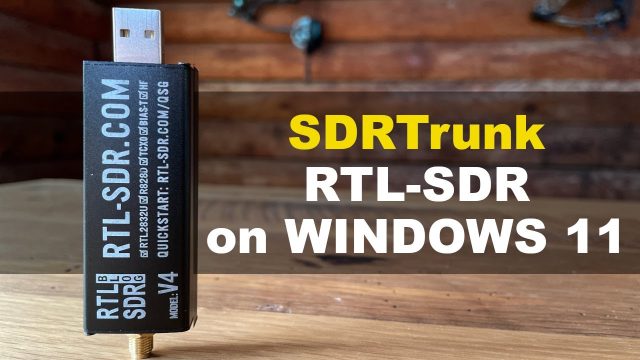
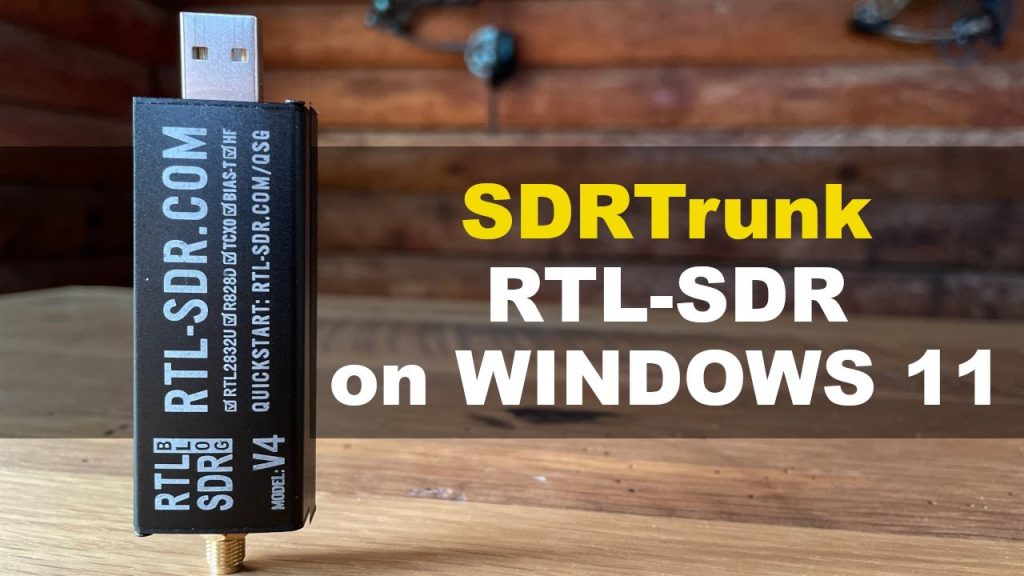
- Antenna — The standard bunny ears antenna that came with your RTL-SDR device works just fine to get started. You’ll be able to pick up GMRS, local repeaters, fire/EMS dispatch, and even some DMR (digital mobile radio) frequencies with it.
- Connecting the antenna — Screw the antenna into your SDR dongle, then plug the dongle into an available USB port.
- ⚠️ Important: Do NOT use a USB 3.0 port (those are the ones with blue inside the connector). Use a standard USB 2.0 port — no special high-speed ports needed.
What You’ll Need to Download
1. SDR Trunk Head to the SDR Trunk GitHub page under Releases (link in the video description). Under Assets, download the Windows version:
- Choose the x86-64 version — unless you know for certain you’re on an ARM-based processor, this is the one you want.
2. Zadig (Driver Updater) Download Zadig as well. This is what we’ll use to make sure your RTL-SDR device has the correct drivers installed.
Step 1 — Update Your RTL-SDR Drivers with Zadig
- Plug in your RTL-SDR dongle
- Open Zadig
- Go to Options → List All Devices
- Select Bulk-In, Interface (Interface 0) from the dropdown
- Check the driver shown on the left side — if it says None, click Install Driver
- Wait for the installation to complete
If your driver is already up to date, you’re good to move on.
Step 2 — Install and Launch SDR Trunk
- Right-click the downloaded SDR Trunk zip file and select Extract All
- Open the extracted folder → open the next folder inside → open the bin folder
- Double-click sdrtrunk.bat
- Click Run if prompted by Windows
- A console window will open and text will scroll by — this is normal, it’s loading the Java runtime
- When the “Perform CPU Calibration” prompt appears, you can click Cancel for now (you can run it another time — it just takes a while)
- The main SDR Trunk window will open, including the waterfall display showing live frequency activity
Step 3 — Program in Your Frequencies
- Click Playlist in the top menu
- Go to the Channels tab
- Click New → select NBFM as the channel type
- Fill in the details:
- System: Give it a name (e.g., “FM Site Augusta County”)
- Name: Label the channel (e.g., “Sheriff”)
- Frequency: Enter your frequency (e.g., 460.400)
- Click Save
To add more channels quickly, click Clone on an existing channel, update the name and frequency, and hit Save again. Repeat for as many frequencies as you need.
Step 4 — Start Listening
- Click on any channel in the list and hit ▶ Play to start monitoring that frequency
- You can have multiple frequencies playing at the same time
- Use Ctrl + Mouse Scroll to zoom in and out on the waterfall display
- Even with a channel’s audio turned off, you can still visually see transmissions happening on the waterfall — the signal peaks and the breaks between transmissions are all visible in real time
Tips and Extras
- Auto-start channels — You can configure channels to automatically begin playing when SDR Trunk launches, so you never miss activity
- GMRS frequencies — If you want to monitor GMRS, click New → NBFM and add your GMRS frequencies. A full list of GMRS frequencies is available at jamesburnett.net
- Multiple tuners — If you have more than one RTL-SDR dongle, SDR Trunk supports multiple tuners simultaneously
Wrapping Up
That’s all it takes to get SDR Trunk running with your RTL-SDR device! Once you have it set up, it’s a fantastic way to stay tuned in to local radio traffic from your desktop. For a printable step-by-step version of this guide along with clickable download links, head over to jamesburnett.net.
Thanks for reading — don’t forget to like and subscribe, and I’ll see you in the next one!